

I published content for almost four months before realizing I had a serious problem.
I hadn’t properly set up Google Search Console. I hadn’t submitted my sitemap, and I wasn’t checking whether Google had indexed the articles I was spending hours creating.
Several months of content weren’t appearing in Google.
That mistake cost me time, energy, and potential traffic. More importantly, I didn’t even know there was a problem because I wasn’t using the dashboard designed to show me what Google could and couldn’t find.
Google can discover a website without Search Console, especially when other websites link to it. However, a new site with few external links can be harder for Google to discover. Without Search Console, you also lose your clearest view into whether Google has crawled and indexed your important pages.
Don’t make the mistake I did.
Google Search Console should be one of the first tools you set up when launching a website. It’s one of the main dashboards I use across both of my websites, and it’s something I continue to check consistently.
This guide will show you how to connect a WordPress site, submit a Yoast sitemap, request indexing, understand the main performance numbers, identify basic problems, and use the data to improve your content.
What Is Google Search Console?
Google Search Console is a free tool that helps you monitor, maintain, and troubleshoot your website’s presence in Google Search. It shows how Google sees your site and how people find it through search.
It can help you:
- Confirm that Google can access your website
- Check which pages are indexed
- Submit an XML sitemap
- Inspect individual URLs
- Request crawling of new or updated pages
- See which searches generate impressions and clicks
- Identify technical or indexing problems
- Find existing content with room to improve
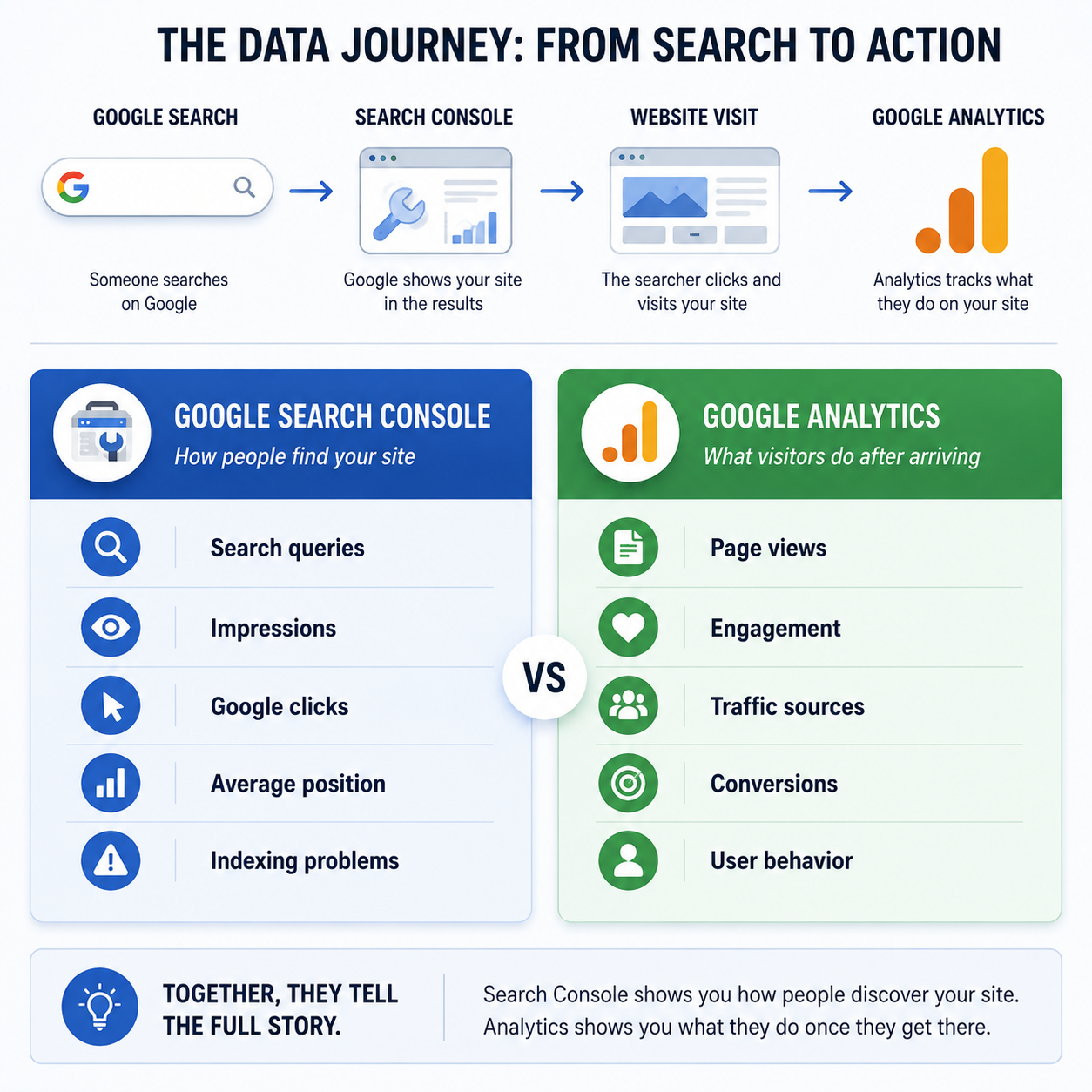
Search Console is not the same thing as Google Analytics.
Search Console focuses primarily on what happens before someone reaches your website, including the query they searched, whether your result appeared, its approximate position, and whether they clicked.
Google Analytics focuses more on what visitors do after arriving, such as which pages they view, how long they stay, and whether they complete important actions.
Google also supports certain platform properties, including presences on supported platforms such as Instagram, TikTok, X, and YouTube. Those properties focus on how the supported presence appears in Google, not everything happening inside the social platform itself. This guide focuses on website properties.
Why Every Website Owner Should Use Search Console
If you own a website and aren’t using Google Search Console, that’s a problem.
You’re putting time, money, or both into building an asset without checking whether Google can properly access it.
A page can be live on your website while still being absent from Google’s index. It can also be blocked by a setting, excluded by a plugin, treated as a duplicate, or left disconnected from the rest of your site.
Search Console helps you catch those problems.
It also gives you data you can use later. Once your site starts receiving impressions, you can see which articles Google is testing, what queries they appear for, and which pages are getting close to stronger positions.
Set it up from day one, but don’t turn it into a dashboard you refresh every hour.
Discovery, Crawling, Indexing, and Ranking
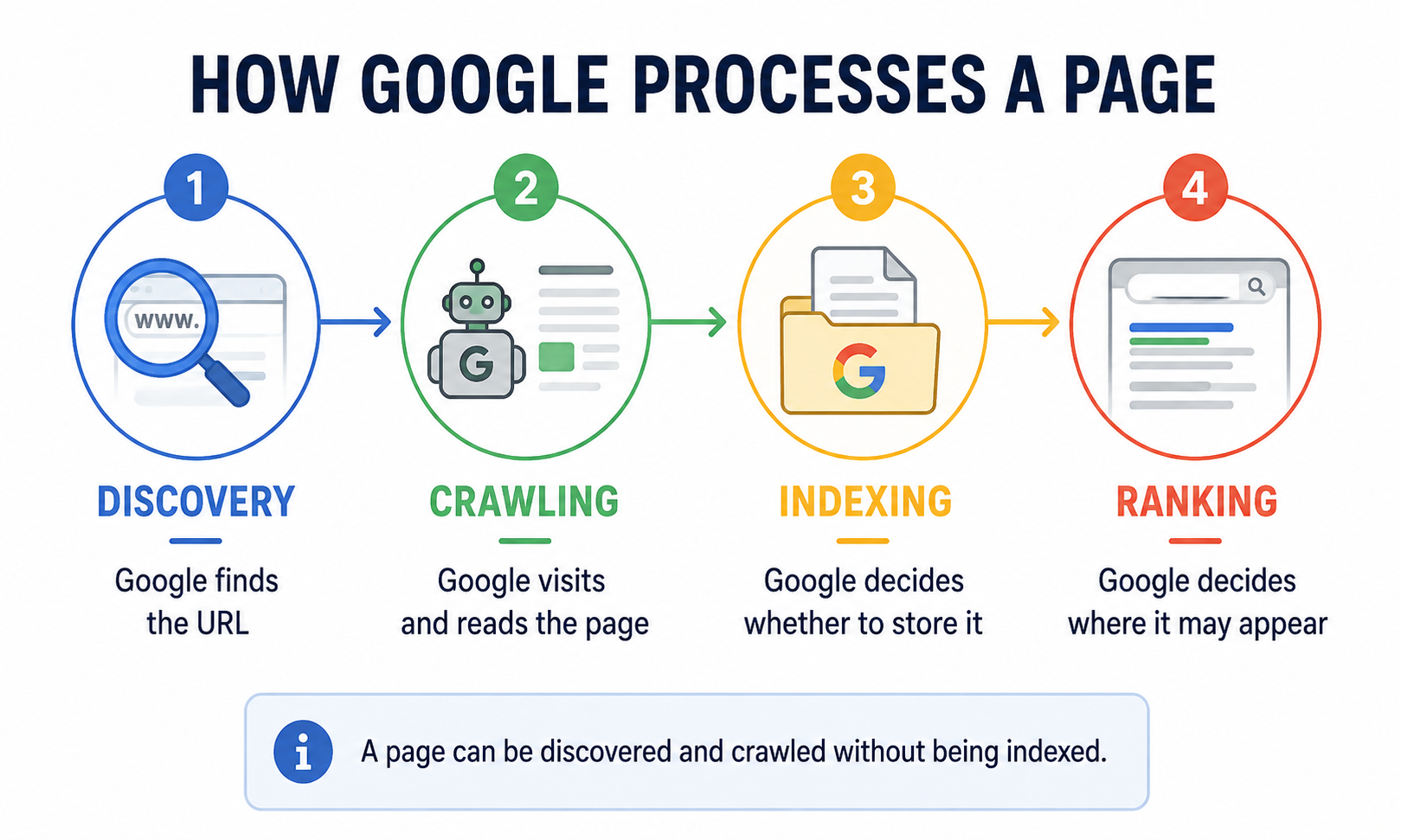
Beginners often use words such as crawling, indexing, and ranking as though they mean the same thing. They don’t.
Here is the simplest way to understand the process.
Discovery
Google finds a URL.
It might discover the URL through your sitemap, an internal link, another website, or a page it already knows about.
Crawling
Google visits the URL and attempts to read the page.
A program called Googlebot downloads and processes the page’s content and resources.
Indexing
Google analyzes the page and decides whether to store it in its index.
Being crawled does not guarantee being indexed.
Ranking
When someone searches, Google decides whether the indexed page is relevant enough to show and where it should appear.
Google describes Search as a process involving crawling, indexing, and serving results. A page must also meet technical requirements and avoid blocking Googlebot if you want it to be eligible for indexing.
This distinction matters because submitting a page does not force Google to index or rank it.
You are making the page available and helping Google discover it. Google still decides what happens next.
How to Connect a WordPress Site to Google Search Console
There are several verification methods. For a complete beginner using WordPress and Yoast SEO, a URL-prefix property with HTML tag verification is usually one of the simplest.
A Domain property is more comprehensive because it combines protocols and subdomains. Google generally recommends it when possible, but it requires changing a DNS record. A URL-prefix property covers the exact address you enter, including whether it uses https, http, www, or no www.
For this walkthrough, we’ll use the easier URL-prefix method.
1. Open Google Search Console
Sign in using the Google account you want associated with the website.
Select the option to add a new property.
2. Enter your complete website address
Under URL prefix, enter your full address.
For example:
Use the version your website actually loads on. Pay attention to https and whether your site uses www.
3. Select HTML tag verification
Google will show several verification methods.
Open the HTML tag option and copy the verification meta tag.
Google periodically checks whether the tag remains on your website, so don’t remove it immediately after verification.
4. Add the verification tag through Yoast
Inside WordPress:
- Go to Yoast SEO.
- Open Settings.
- Select Site connections.
- Find the Google verification field.
- Paste the tag.
- Save your changes.
Return to Search Console and select Verify.
Yoast documents this as its standard Search Console verification workflow.
Once ownership is verified, Google can begin showing information for that property. Don’t worry if the dashboard is mostly empty at first. A new property needs time to collect data.
Check Your WordPress Search Visibility Setting
Before doing anything else, make sure WordPress isn’t asking search engines to stay away.
Inside WordPress, go to:
Settings → Reading
Find the option labeled:
Discourage search engines from indexing this site
That box should normally be unchecked on a public website that you want appearing in search.
This setting is useful while a site is under development, but it’s easy to forget about it when launching. WordPress uses this setting to tell search engines not to index the website.
A single forgotten checkbox can create a much larger problem than anything you might see in the Performance report.
How to Find Your Yoast XML Sitemap
An XML sitemap is a file listing the URLs you want search engines to discover.
Think of it as a map of the important content on your site. It helps Google find pages, especially on a new site with few backlinks.
A sitemap is useful, but it is not a guarantee. Google may choose not to crawl or index some of the URLs inside it.
Find the sitemap inside Yoast
In WordPress:
- Go to Yoast SEO.
- Open Settings.
- Select Site features.
- Find XML sitemaps under the technical SEO settings.
- Confirm that the feature is enabled.
Yoast automatically updates its sitemap when you add, remove, or change content. Content types marked noindex are excluded from the sitemap.
The normal Yoast sitemap address is:
Replace yourdomain.com with your actual domain.
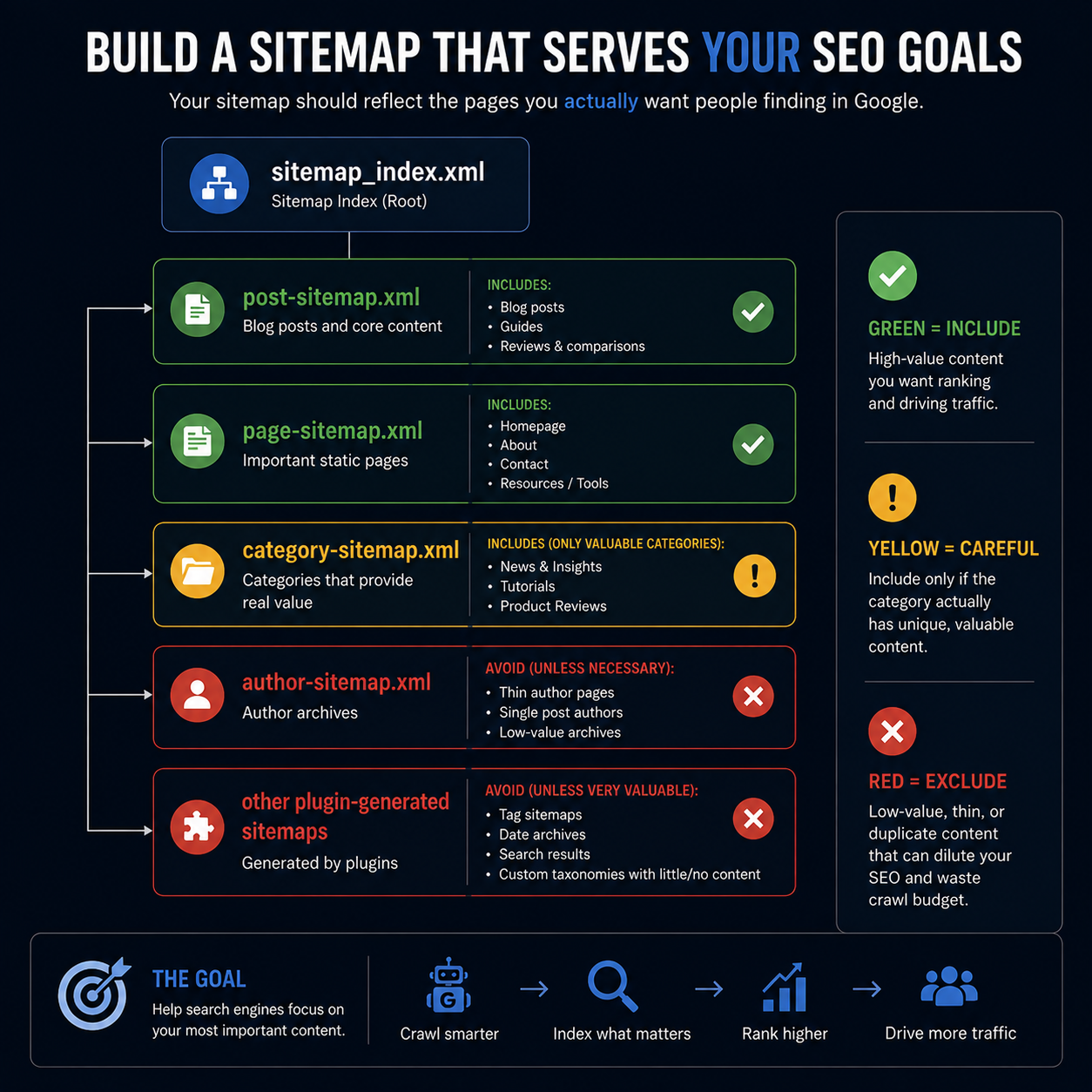
Open that address in your browser. You should see a sitemap index containing links to smaller sitemaps for your posts, pages, categories, and any other enabled content types.
Submit Your Sitemap to Search Console
Once the sitemap loads correctly:
- Open the correct property in Search Console.
- Select Sitemaps from the sidebar.
- Find the field for adding a new sitemap.
- Enter sitemap_index.xml.
- Select Submit.
For a URL-prefix property, Search Console normally displays your domain before the input field. For a Domain property, you may need to enter the full sitemap address.
You only need to submit the Yoast sitemap index. It points Google toward the individual sitemaps and updates automatically when your website changes.
Search Console will show whether Google could read the file. If it reports an error, open the sitemap directly and confirm that it loads without a login screen, server error, or redirect problem.
How to Keep Your Sitemap Clean
WordPress plugins, themes, taxonomies, and content settings can create URLs you never intentionally designed.
Search Console may discover them because they appear in your sitemap or are linked somewhere on the website.
These might include:
- Empty tag archives
- Thin category pages
- Author archives
- Attachment pages
- Plugin-generated URLs
- Duplicate archives
- Internal search-result pages
- Content types that serve no purpose for visitors
That doesn’t mean every category, tag, or archive page is bad.
A useful category page can help readers navigate your website and provide a strong destination around a broader topic. A nearly empty category containing one article probably isn’t doing much.
The goal is not to remove everything that isn’t a blog post. The goal is to make sure the sitemap reflects the pages you genuinely want people finding through Google.
Yoast removes content from its sitemap when that content is set to noindex. Google treats noindex as an instruction not to include an accessible page in search results.
Review your Yoast settings for:
- Posts
- Pages
- Categories
- Tags
- Author archives
- Custom post types created by plugins
Don’t blindly toggle settings. Ask whether each type of page provides something useful and unique.
How to Request Indexing for a New Post
After I publish a post or page, I immediately copy the live URL and paste it into Search Console.
It’s habitual at this point.
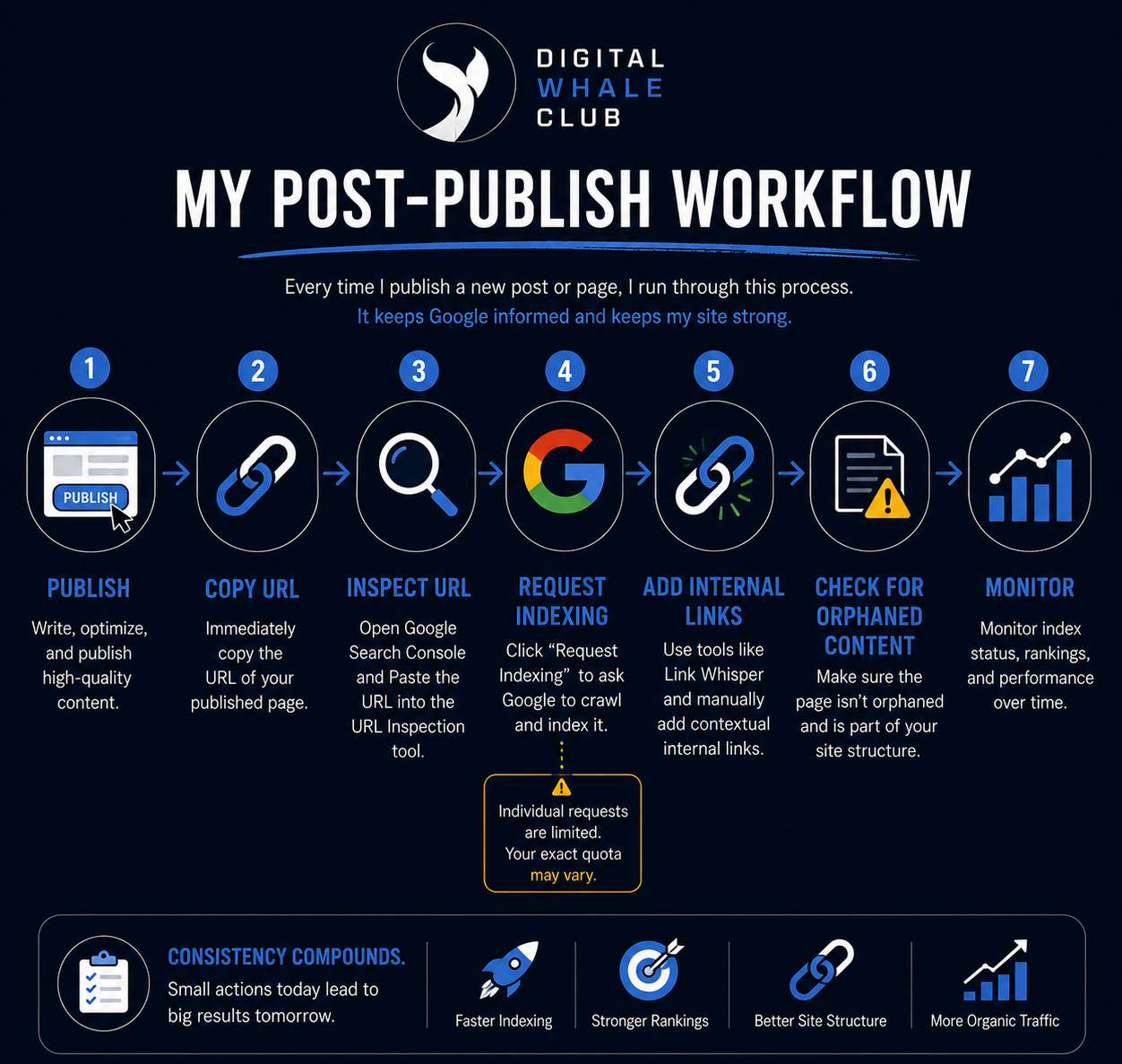
My post-publishing workflow looks like this:
- Publish the post.
- Copy the live URL.
- Paste it into the URL Inspection tool.
- Request indexing.
- Add relevant internal links.
- Use a tool such as Link Whisper or add the links manually.
- Confirm that the new page isn’t orphaned.
The URL Inspection tool shows what Google knows about a specific page. It can also run a live test and request that Google crawl the URL.
To use it, paste the complete URL into the inspection bar at the top of Search Console. After Google checks it, select Request indexing.
That request does not guarantee immediate indexing. Crawling can take anywhere from days to weeks, and Google prioritizes content based on its own systems.
Search Console has an indexing-request quota
Google limits the number of individual URLs you can submit through the URL Inspection tool.
In my experience, I’ve commonly run into a limit of around 10 requests within a 24-hour period. Google confirms that a quota exists, but it doesn’t publish one fixed number that every website receives. Your limit may be different.
Don’t repeatedly submit the same page. Google states that multiple requests for the same URL won’t make it get crawled faster.
Manual requests are most useful for:
- A newly published important article
- A new cornerstone page
- A substantially updated post
- A page where you fixed an indexing problem
- A URL you want to test for accessibility
For larger numbers of pages, rely on a valid sitemap and strong internal linking.
Why Internal Links Matter
A sitemap helps discovery, but it shouldn’t be the only path leading to a page.
An orphaned page has no meaningful internal links pointing toward it. A visitor may only reach it through the direct URL, and search engines have fewer signals showing how the page fits into the rest of the website.
Google says that it can usually discover important pages when they are reachable through navigation and links from other pages.
After publishing, add links from relevant existing articles to the new page. Also link from the new page to other useful content.
Internal links help readers move through the site, show the relationship between topics, and prevent valuable pages from sitting alone.

Link Whisper is a WordPress internal linking plugin that helps website owners find relevant linking opportunities, add contextual internal links faster, and identify orphaned content. It simplifies site structure and internal link management without requiring you to manually search through every post.
What Clicks, Impressions, Position, and CTR Mean
The Performance report is the discoverability side of your website.
These four numbers are the ones beginners see first.
| Metric | What it means | What to remember |
|---|---|---|
| Clicks | Someone clicked a Google result and visited your website | This represents actual traffic from Google |
| Impressions | A link to your site appeared in a qualifying Google result | It doesn’t always mean the searcher carefully looked at it |
| Average position | The average top position recorded for your site or page | Lower numbers are better because position 1 is the top |
| CTR | Clicks divided by impressions | Useful, but it always needs context |
Google’s exact impression rules depend on the type of result. Some results must be scrolled or expanded into view before an impression is counted.
Lower average position numbers are better
This confuses a lot of beginners.
Position 1 is the top result. Position 2 is below it.
Moving from an average position of 30 to 12 is generally an improvement. Moving from 12 to 30 is generally a decline.
Average position is still an imperfect metric. Search results contain different layouts, and your position can vary by query, location, device, and user. Google recommends looking at changes over time rather than treating the number as a precise universal ranking.
Don’t become obsessed with CTR
CTR is useful, but I don’t spend too much time worrying about the sitewide number.
A low CTR might mean your title isn’t compelling. It might mean you’re ranking too low. It might also reflect the type of query or the way Google presents the results.
AI Overviews are now another search-result format. When a link appears in an AI Overview, Search Console applies its standard rules for recording clicks, impressions, and position.
That’s another reason not to diagnose your entire website from one percentage.
Look at the context:
- Is the page ranking high enough to earn clicks?
- Does the title match what the searcher wants?
- Is the query informational enough that Google can answer it directly?
- Are impressions growing?
- Are relevant pages beginning to appear for more searches?
What Impressions Without Clicks Usually Mean
A site receiving impressions but very few clicks isn’t necessarily failing.
It may mean Google is beginning to test the content, but the page isn’t ranking high enough yet.
It could also mean:
- The page needs stronger firsthand insight
- The title doesn’t match the search intent
- The content is too similar to what already ranks
- The site needs more authority
- The page needs relevant backlinks
- The result is appearing for loosely related queries
- The answer is available directly on the results page
- The site simply needs more time
Content quality and patience make a difference here.
Don’t rewrite an entire article because it received impressions for one week without clicks. Look at a longer period, inspect the queries, and determine whether the page is actually a good answer for them.

Don’t Obsess Over Daily Fluctuations
Beginners often start checking Search Console every day as soon as the first impressions appear.
That usually creates unnecessary stress.
A small website has limited data. One or two clicks can make a chart look amazing. A quiet day can make it look like the site collapsed.
Look at the long-term trend, especially during the first three or four months of publishing consistently.
Your attention should still be going toward:
- Publishing useful content
- Improving older posts
- Building internal links
- Earning relevant backlinks
- Developing social platforms
- Turning blog posts into social content
- Building an audience outside Google
Checking Search Console is useful. Refreshing it doesn’t create traffic.
Common Indexing Statuses Beginners Will See
The Page indexing report will show URLs Google indexed and URLs it excluded.
Not every excluded URL is a problem.
Discovered, currently not indexed
Google knows the URL exists but hasn’t crawled it yet.
Google says this can happen when crawling the URL at that time may have overloaded the site, so the crawl was rescheduled.
Check that:
- The page is included in your sitemap
- Relevant internal pages link to it
- The server loads reliably
- The page is not buried deep in the site
- You aren’t publishing large amounts of thin content
Then give Google time.
Crawled, currently not indexed
Google visited the page but didn’t add it to the index.
Google says the page may or may not be indexed later and that there is no need to keep resubmitting it for crawling.
Review:
- Whether the content is original
- Whether it meaningfully answers the query
- Whether another page covers the same subject
- Internal links
- Canonical settings
- Accidental noindex tags
- Page quality and usefulness
Don’t automatically change the URL. That can create redirects and break existing links without fixing the underlying problem.
Excluded by a noindex tag
Google found a noindex instruction on the page.
This may be intentional for an archive, tag, or utility page. It may also be an incorrect WordPress or Yoast setting.
Inspect the page and decide whether you actually want it in search.
Duplicate or canonical-related statuses
Google may find several URLs with the same or very similar content and select one as the canonical version.
That can happen through archives, URL parameters, HTTP and HTTPS variations, or duplicate pages created by plugins.
Google generally indexes the version it considers the most complete and useful canonical page.
Not found and redirect errors
A 404 means the URL doesn’t exist at that location.
This may be expected after deleting a page, but check that:
- The old URL isn’t still in the sitemap
- Internal links aren’t pointing to it
- A relevant replacement has a proper redirect
- The redirect doesn’t lead through a long chain
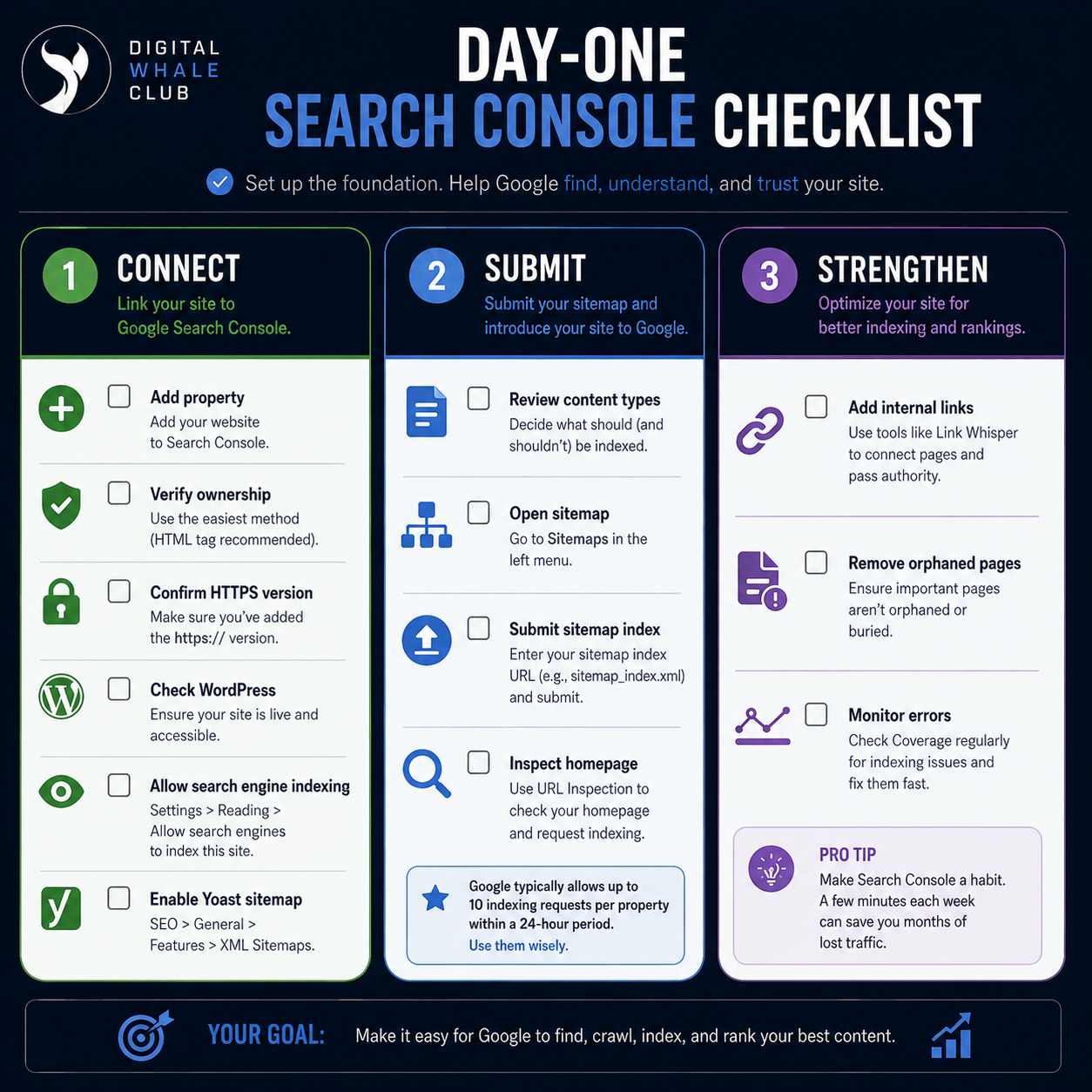
Your Day-One Search Console Checklist
Use this checklist when launching a WordPress website:
- Create or sign in to your Google account.
- Add the website to Search Console.
- Verify ownership.
- Confirm that you added the correct HTTPS property.
- Check Settings → Reading in WordPress.
- Make sure search engines are not being discouraged.
- Enable Yoast XML sitemaps.
- Open sitemap_index.xml in your browser.
- Review which content types appear in it.
- Submit the sitemap in Search Console.
- Inspect the homepage.
- Inspect one important post or page.
- Add internal links to your important pages.
- Check that no important content is orphaned.
- Review Search Console messages for obvious problems.
Completing those steps won’t guarantee rankings, but it gives the website a clean starting point.
A Simple Search Console Routine
You don’t need to inspect every report every day.
After publishing
- Request indexing for the new URL
- Add relevant internal links
- Confirm the page is in the sitemap
- Check that it isn’t orphaned
Once a week
- Check for major indexing errors
- Confirm recently published content is being discovered
- Investigate any important page that unexpectedly disappeared
Once a month
- Review the previous three months
- Compare performance with the previous period
- Identify your strongest pages
- Open the Queries report for those pages
- Look for realistic improvement opportunities
- Update content when the data reveals a genuine gap
How to Improve Existing Content With Search Console
One of my main uses for Search Console is finding content that already shows signs of working.
Open the Performance report and review your top pages. When you find a strong page, select it and open the Queries tab.
You’ll see searches connected to that page.
Google specifically recommends using the Queries and Pages tabs to identify popular searches and top-performing content.
Look for queries that:
- Closely match the article
- Already receive impressions
- Sit around positions 8 to 20
- Reveal a useful question the article barely answers
- Suggest that a section needs more detail
A small, relevant edit can sometimes help a page become a better answer.
That doesn’t mean copying every query into the article.
Only add something when it makes the content more useful. Search Console should help you identify missing value, not encourage keyword stuffing.
Google Traffic Should Be the Cherry on Top
Search traffic is valuable. It can also be unpredictable.
To be a good website owner and business owner, you shouldn’t depend too heavily on one platform.
Google changes. Search layouts change. Rankings move. People change how they look for answers.
Build other traffic sources alongside search:
- Social media
- Referral links
- Communities
- Direct visitors
- Content repurposing
I don’t always live up to this advice as consistently as I should. However, I have the ability and systems to diversify traffic when needed.
Reddit is one example. A Reddit post may rank in Google or send direct traffic, but it may not rank forever. The useful part is having a repeatable system that allows you to generate more traffic rather than depending on one result staying in place.
Google should be a powerful part of your traffic strategy. It shouldn’t be the only part.
Final Takeaway
Install Google Search Console when your website goes live, not four months later.
Verify the property, check your WordPress visibility settings, submit your sitemap, and make sure your important pages have internal links.
Request indexing when it makes sense, but understand that the button doesn’t force Google to include the page.
Use the Performance report to see what is gaining traction. Look at months instead of individual days. Pay attention to clicks, impressions, queries, and pages without allowing every fluctuation to distract you from creating better content.
Most importantly, use Search Console as a tool for making decisions.
Don’t let checking the dashboard become a substitute for building the website.
Frequently Asked Questions
Is Google Search Console free?
Yes. Google Search Console is a free service for monitoring and troubleshooting a website’s presence in Google Search.
Do I need Search Console for my website to appear in Google?
No. Google can discover websites through links and other crawling methods. Search Console gives you visibility, sitemap submission, URL inspection, reporting, and troubleshooting tools.
Does submitting a sitemap guarantee indexing?
No. A sitemap helps Google discover URLs, but it doesn’t guarantee that every URL will be crawled or indexed.
Should I request indexing every time I publish?
You can request indexing for important new pages, and it is part of my normal workflow. It is not required for every page, and Google limits individual requests. Your sitemap and internal links remain important.
How long does Google take to index a page?
It can take anywhere from a few days to a few weeks. Google doesn’t guarantee when or whether a URL will be indexed.
Is a higher average position better?
No. Lower position numbers are better. Position 1 is the top result.
Why do I have impressions but no clicks?
The page may be ranking too low, appearing for loosely related searches, competing with direct answers, or using a title that doesn’t earn the click. Review the individual queries and consider the long-term trend before making large changes.
Should category and tag pages be indexed?
Only when they provide real value. Useful category pages may deserve indexing. Empty or thin archives often don’t.
Can I use Search Console with Wix, Squarespace, or Shopify?
Yes. Search Console works with different content management systems. The verification and sitemap instructions vary, but the indexing and performance concepts remain the same.